How to Add Captions to Instagram Reels in 2026 (Step-by-Step)
Learn the exact workflow for burning custom, highly visible captions into your Instagram Reels to prevent scrolling and hold viewer attention.
Instagram Reels demand immediate visual engagement. A scrolling user gives your video less than three seconds to prove its worth. Audio usually stays muted.
Visual hooks hold the viewer. High-contrast text flashing across the screen center forces the eye to track movement. This creates an anchor point that keeps people watching.
Meta's internal text tool introduces massive risk. The native editor strips away your brand control. Fonts shift unpredictably. The timing engine frequently misses fast dialogue.
You end up spending twenty minutes manually correcting grammar on a tiny smartphone screen. Burned-in text solves these problems entirely.
Rendering text directly into the MP4 file before uploading guarantees the final product looks exactly as intended. This guide details the exact production workflow for creating high-retention vertical videos.
We will cover vertical canvas geometry and single-word display timing. We also explain how to execute this process using the CapzAi editing studio.
The Case Against Native Instagram Text Tools
The Visibility Problem
You upload a heavily edited clip. You tap the sticker icon and select "Captions." The app transcribes your speech.
You publish the video. An hour later, you realize the text blended perfectly into your subject's white shirt. The punchline is completely invisible.
We see creators make this error daily. The platform's internal rendering engine prioritizes app performance over typography. You cannot add heavy drop shadows. You cannot implement precise word-level highlights.
The Burn-In Advantage
Burn-in guarantees visual stability. The text becomes part of the actual pixel data of your video file. No platform glitch can desync your timing.
Custom rendering allows for complex animation curves. A word popping onto the screen triggers a micro-reaction in the viewer's brain. Instagram's native fade-in animations feel sluggish compared to the aggressive scaling of a proper viral preset.
If you want maximum watch time, your text must actively participate in the pacing of the edit. Fast text animations keep eyes glued to the screen.
Instagram Reels Safe Zones and Vertical Geometry
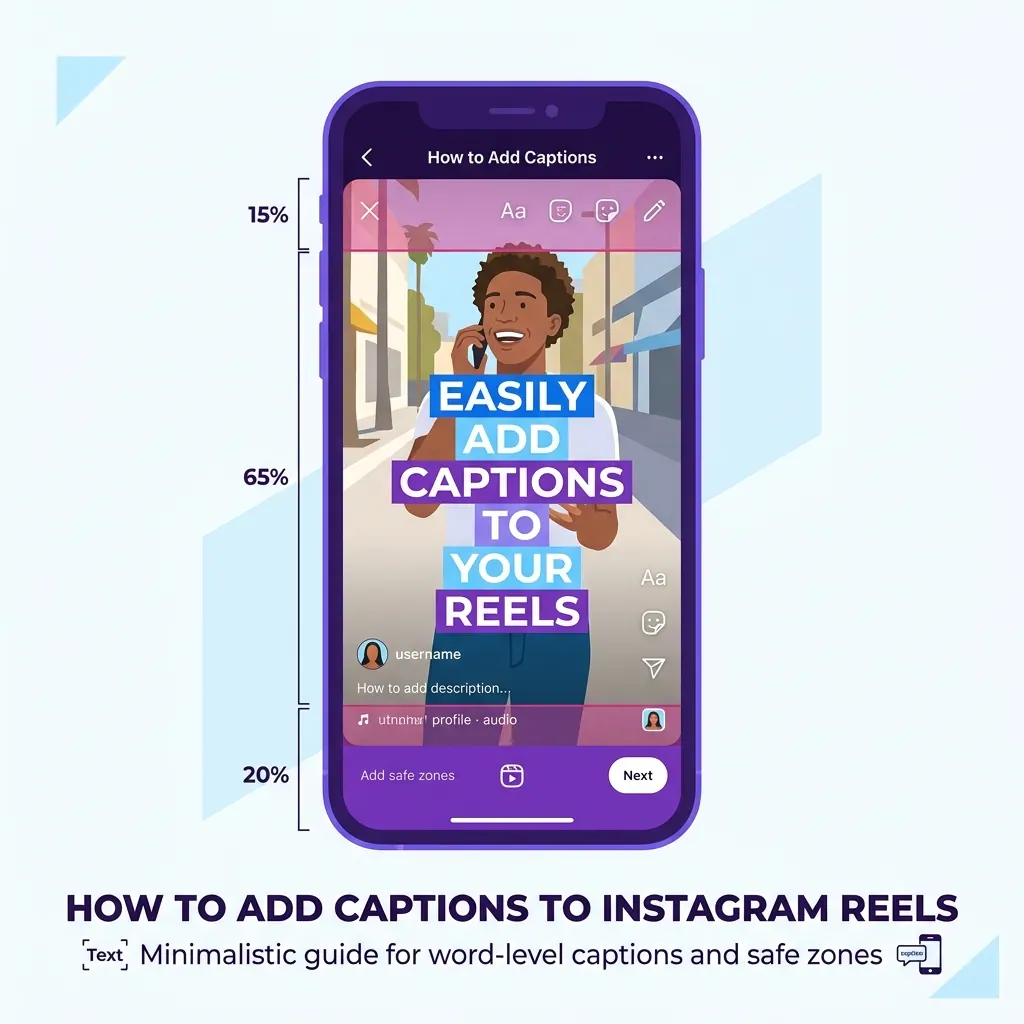
A standard Instagram Reel uses a 1080x1920 pixel resolution. This 9:16 aspect ratio feels spacious until you account for the platform's user interface. The actual visible real estate is heavily restricted.
Mapping the Dead Zones
The bottom 20 percent of your screen is a dead zone. Instagram places your username, the caption description, hashtags, and the scrolling audio track here. Text positioned here becomes unreadable digital noise.
The right 15 percent of the screen houses the engagement stack. The heart icon, comment bubble, share arrow, and save button occupy a massive vertical column. Viewers actively look at this column. They notice if your text slides underneath the like button.
The top 15 percent contains the progress bar and system status indicators.
The Central Reading Pocket
This leaves a tight central pocket. The safest area is vertically centered, stopping sharply before the bottom description UI begins.
You want your text firmly anchored here. Viewers naturally rest their eyes in this middle third of their phone screen. Keeping text centered prevents user frustration.
Word-Level Timing and the 3-Second Hook
Managing Reading Speed
Reading speed dictates retention. If you put a full ten-word sentence on the screen at once, the viewer reads it in one second. You are still speaking the sentence for another three seconds.
The viewer consumes the information prematurely. They get bored waiting for your audio to catch up to their reading speed. They scroll away.
Word-level timing fixes this discrepancy. You display exactly one or two words at a time. The viewer must wait for the next frame to get the next piece of information.
You string them along. You control the pacing of their consumption.
Artificial Speed and Hooks
This constant visual updating creates an artificial sense of speed. Even a slow speaker appears energetic when text fires rapidly across the screen. The kinetic movement of typography compensates for audio lulls.
This strategy performs exceptionally well during the first three seconds of a Reel. The initial hook must interrupt the user's scrolling pattern.
Bright yellow text snapping onto a dark background provides that exact interruption. For a deeper analysis on platform differences, read understanding TikTok vs Reel caption pacing.
Step-by-Step CapzAi Workflow for Reels
Creating these assets requires precise software. We built CapzAi specifically to handle the heavy lifting of audio transcription, typographic styling, and multi-language formatting.
Here is the exact process for prepping a video.
Step 1: Ingestion and Auto-Clipping
Start by opening your projects dashboard. Click the upload button and select your raw video file. You can upload an editing timeline export, a raw camera file, or a full podcast episode.
If you upload a short vertical video, CapzAi immediately begins transcribing the audio.
If you upload a forty-minute horizontal podcast, you do not want to transcribe everything manually. You use the auto-clipping tool instead.
The system scans the massive file. It identifies segments with the highest emotional intensity or clearest narrative arcs. It slices them out.
You select the best 45-second clip from the generated list. The system automatically reformats the horizontal video into a 1080x1920 vertical canvas. It tracks the active speaker and crops the frame to keep them centered.
Step 2: Language Translation and Dubbing
You must decide on your target audience before touching text styles. Assume you recorded the video in English and want to reach a North African demographic.
You select the translation tab. You pick French, Arabic, or Darija. CapzAi generates a translated transcript.
For Arabic and Darija, the engine automatically restructures text blocks into a strict Right-to-Left (RTL) layout. Basic editing software usually breaks under RTL demands. Commas appear on the wrong side and punctuation shatters.
Our engine renders Arabic characters correctly. It keeps ligatures connected and the reading direction accurate. Read more about this technical process in our guide to RTL language layouts.
You can take localization further by activating AI voice dubbing. The system mutes your original English audio. It generates a realistic AI voice speaking the translated Arabic text, syncing it to your lip movements. You now possess a fully localized piece of media.
Step 3: Selecting the Typography Preset
The visual styling determines how aggressively your video demands attention. CapzAi includes five distinct presets built around different retention strategies.
The Viral Pop Preset Use this for high-energy coaching videos, fitness content, or aggressive marketing hooks. Every word scales up quickly from the center.
The active word hits a massive font weight, usually rendered in neon yellow or bright green. The previous words shrink slightly. This creates a pumping heartbeat effect on the screen.
The Karaoke Preset Use this for storytelling, vlogs, and conversational content. The engine displays a short phrase. The active word changes color precisely as you speak it.
The text block remains physically static. The color highlight tracks across the sentence. This provides high legibility while maintaining the kinetic energy of word-level timing.
The Classic Preset Use this for corporate branding, B2B SaaS marketing, and formal announcements. The text appears as a solid block at the bottom of the safe zone.
It uses clean sans-serif fonts and subtle drop shadows. No bouncing and no color flashes. It provides accessibility without shouting at the viewer.
The Docu Preset Use this for true crime, historical summaries, and intense narrative clips. The text utilizes serif fonts and a harsh typewriter effect. It feels clinical and serious.
The Creative Preset Use this for music production breakdowns, art timelapses, or stylized fashion clips. The text moves erratically. It features unconventional fonts and heavy graphic treatments.
For a standard Instagram Reel aimed at broad growth, select the Viral Pop preset.
Step 4: Refinement Using the AI Agent
You have your clip. You have your preset applied. You notice a few things you want to change.
Instead of digging through menus looking for drop-shadow opacity sliders, you use the Chat-to-Edit AI Agent. You open the side panel and type a plain English command.
"Change the active word color to Hex #FF3366." "Shift all text up by 150 pixels." "Capitalize every single word in the video." "Make the font Inter Black."
The AI Agent interprets the instruction. It locates the relevant variables in the styling engine and applies the update instantly.
You evaluate the change on the preview canvas. If you dislike it, you type "undo that and make the text slightly smaller instead."
The agent also handles textual corrections. If you say a highly specific industry term and the transcription engine misinterprets it, just tell the agent.
Type "Change the word 'synergy' to 'cinnamon' at the 12-second mark." The correction occurs instantly.
Step 5: Manual Adjustments on the Canvas
You always need to perform a final manual review. Watch the video completely through. Pay attention to the background behind the text.
Does the subject raise their hands in front of their chest? Does a bright white car drive through the shot?
If text becomes hard to read during a specific two-second window, click on that caption block in the timeline. Drag it slightly higher on the canvas.
CapzAi allows you to break global layout rules for individual clips. You can have text sit dead center for the first ten seconds.
You might move it to the top of the screen to reveal a product in your hands. Then, snap it back to the center for the outro.
Step 6: Exporting the Assets
You are ready to render. CapzAi operates on a strict pay-on-export basis.
You pay 20 credits per minute of rendered video. You do not pay a massive monthly subscription fee to use the editor. You only spend credits when you actually pull a finished file out of the system.
Click the export button. The servers render your clip.
You will receive an MP4 file with the captions permanently burned into the video. You will also receive an .ass subtitle file. Keep the .ass file in your archives, as you only need the MP4 for Instagram.
Uploading to Instagram Properly
Transfer the rendered MP4 file to your mobile device. Open the Instagram application. Swipe to the Reels camera and select your video from the camera roll.
You must turn off the native auto-captions. Sometimes, Instagram attempts to be helpful and applies its own text over your video. This happens even if it detects existing text on the screen.
Tap the sticker icon. Ensure the "Captions" sticker is completely disabled. Go to the advanced settings menu before hitting publish.
Scroll down to the accessibility section. Toggle off the "Show Captions" switch. This guarantees your audience only sees your CapzAi burned-in text.
Add your description. Include your hashtags. Select an appealing cover frame from the video timeline and hit publish.
Three Fatal Captioning Mistakes
Even with perfect software, creators ruin their videos through poor decision-making. Avoid these specific errors.
Mistake One: Zero Contrast on Cluttered Backgrounds
White text on a light gray background equals zero retention. Viewers refuse to strain their eyes to decipher your words.
If your video features complex backgrounds, you must protect your text. Busy city streets or brightly lit offices destroy legibility. Apply a heavy black stroke to the font.
If a stroke looks messy, place the text inside a solid black bounding box with 80 percent opacity. The text must snap off the screen.
Mistake Two: Tiny Typography
Creators often edit videos on large 27-inch desktop monitors. They set the font size to something elegant on a massive screen and export the video.
A viewer then watches it on a scratched smartphone screen in direct sunlight. The text becomes entirely illegible. Push your font sizes up.
When text looks slightly too large on your desktop monitor, it is likely the perfect size for mobile viewing. Stick to bold, heavy-weight fonts like Montserrat ExtraBold or Inter Black. Avoid thin script fonts.
Mistake Three: Dead Air in the Pacing
Text animation cannot save a boring video. Leaving two seconds of silence between sentences causes the text to disappear.
The screen stops flashing and the visual hook drops. Viewers leave immediately during these gaps. You must tighten your audio edits before generating captions.
Cut out every breath. Cut out the pauses. The audio should fire relentlessly, forcing the captions to fire relentlessly as well.
Taking Action on Your Next Upload
You have the exact workflow. Open your raw footage and process it through CapzAi.
Select a high-contrast preset. Manually verify your safe zones against the platform UI.
Stop letting social algorithms dictate your brand presentation. Go render your first clip right now.
Related articles
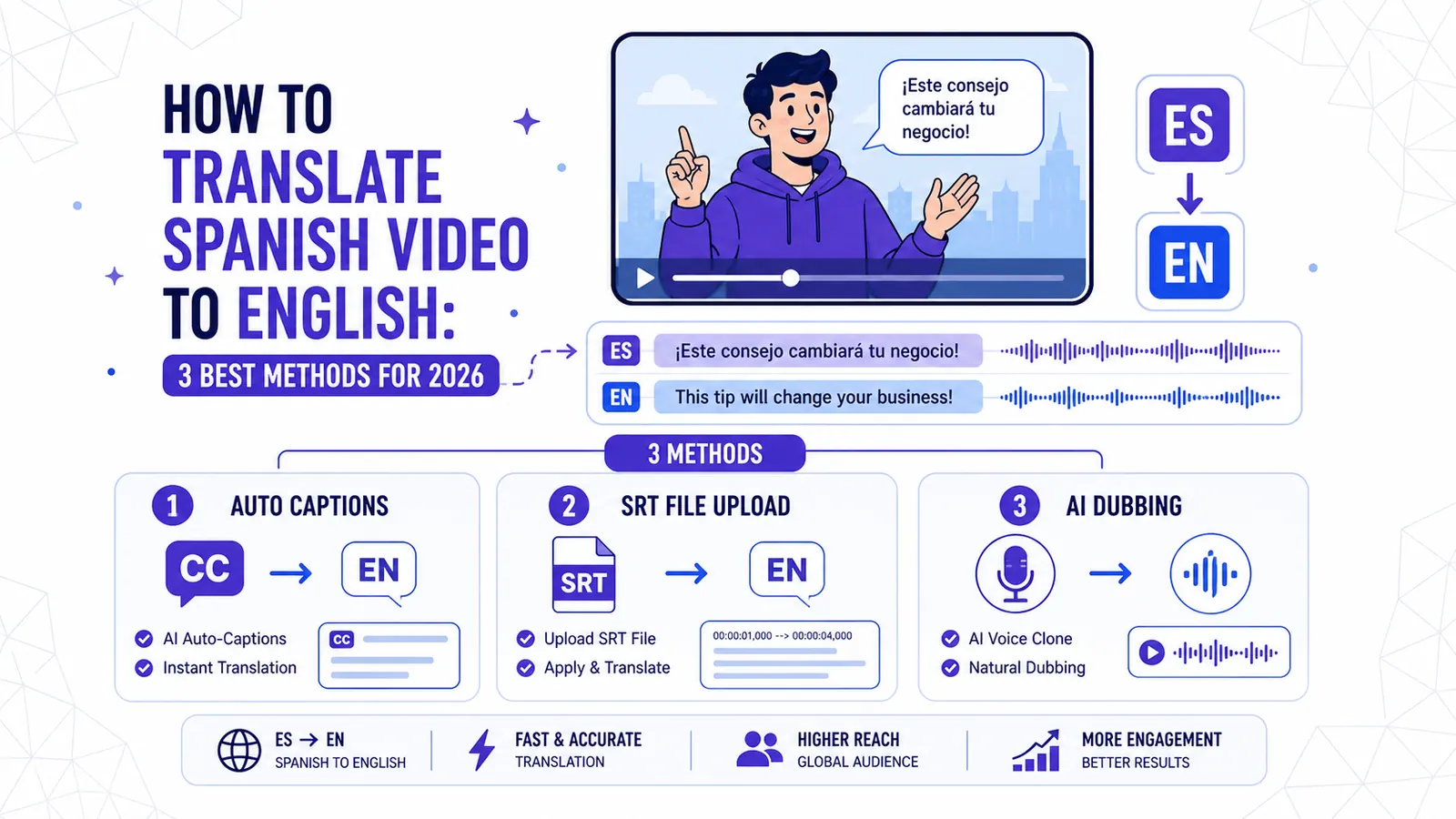
How to Translate Spanish Video to English: 3 Best Methods for 2026
Discover the most effective ways to translate Spanish video to English, from auto-captions and manual SRT files to full AI dubbing with CapzAi.
Read
7 Best Opus Clip Alternatives in 2026: Ranked for Speed and Languages
Looking for the best Opus Clip alternatives? We rank 7 AI video tools for speed, language support (including Arabic and Darija), and pricing to help you scale your social media presence.
Read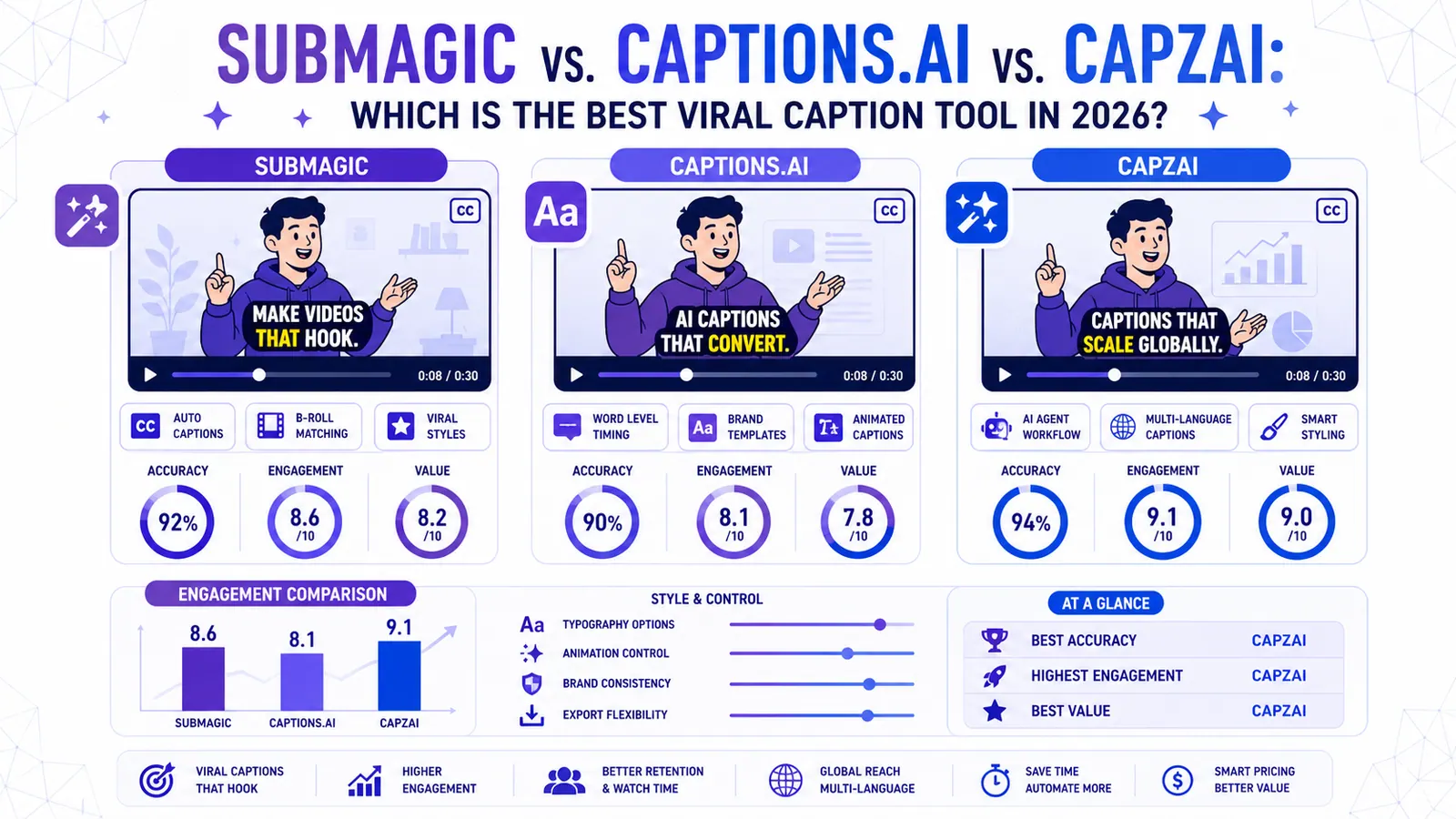
Submagic vs. Captions.ai vs. CapzAi: Which is the Best Viral Caption Tool in 2026?
We put the industry giants Submagic and Captions.ai head-to-head against CapzAi to see which AI captioning tool delivers the best engagement, accuracy, and value for creators.
Read