How to Translate Any YouTube Video (Free Methods for 2026)
Learn the top three free methods to translate a YouTube video, from YouTube's built-in auto-translate to advanced AI tools for perfect dubbing and subtitles.
Have you ever found the perfect tutorial, documentary, or review, only to realize the creator is speaking a language you do not understand? Figuring out exactly how to translate youtube video content is a necessary skill for modern viewers and an absolute requirement for ambitious creators. We live in a heavily connected global environment. Video is the universal medium for sharing information, yet language remains a stubborn barrier for millions of people every single day.
Whether you are a student trying to comprehend a foreign lecture, a viewer who wants to enjoy international entertainment, or a content creator expanding your YouTube audience across borders, you need reliable translation methods. Relying on single-language content leaves too much value on the table.
In this guide, we will break down three distinct methods to translate any YouTube video. We will start with the basic built-in tools provided by YouTube, move on to customized browser extensions, and finally explore professional-grade AI tools that offer full dubbing and custom subtitle workflows.
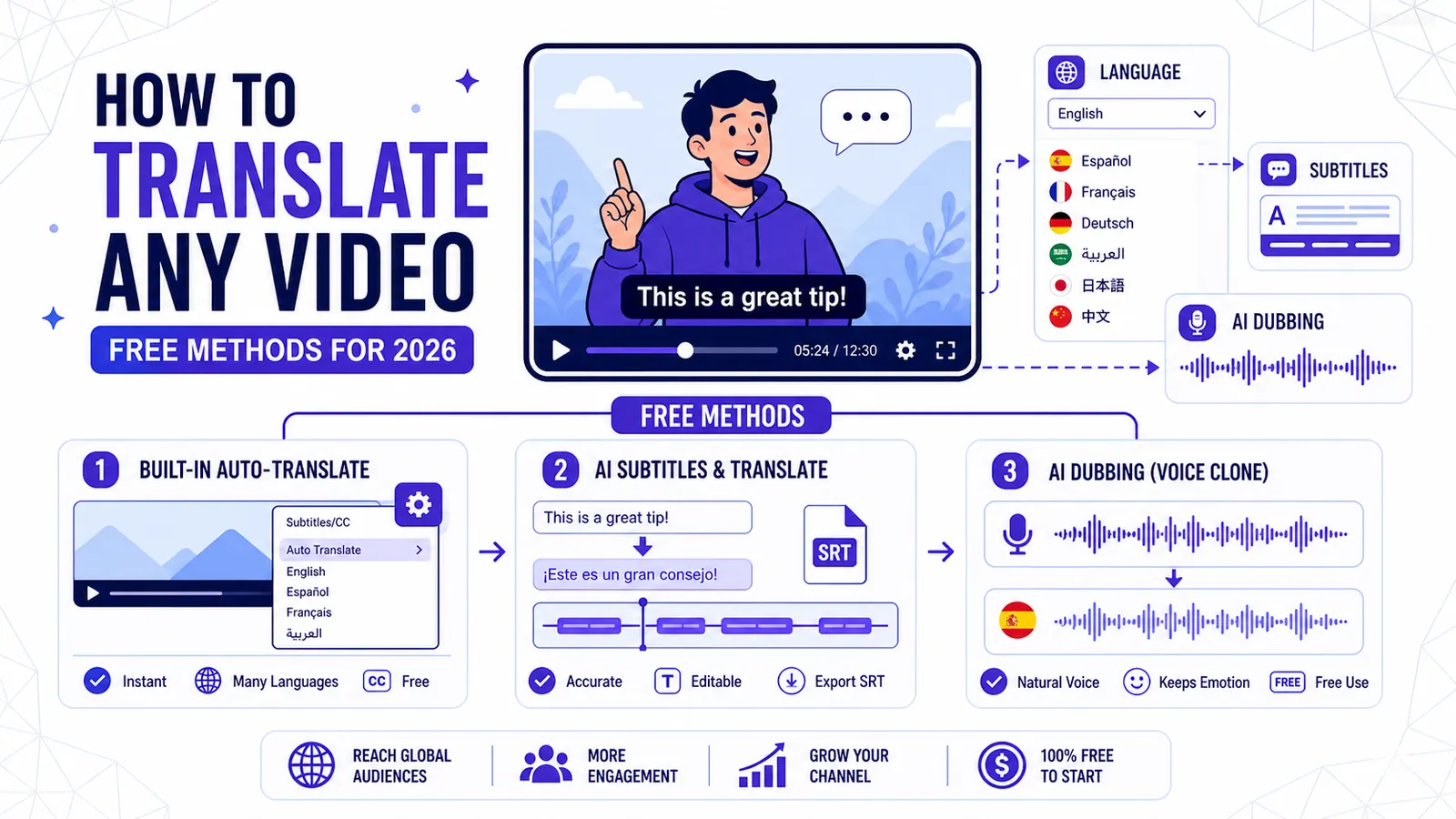
Method 1: Use YouTube Built-In Auto-Translate
The fastest and most accessible way to translate a video requires zero extra software. YouTube provides a native tool to translate closed captions on the fly. Google powers this feature, utilizing the same technology behind Google Translate to convert the original spoken text into dozens of different languages.
This feature is completely free and works on almost any device. However, it requires the video to have either manual or auto-generated captions enabled by the creator. If the video does not have a caption track available, this method will not work.
How to use Auto-Translate on Desktop
Translating a video on your computer browser takes just a few clicks. First, open the YouTube video you want to watch. Look at the bottom right corner of the video player and click the "CC" (Closed Captions) button to turn the subtitles on. Once the text appears on the screen, click the gear icon right next to the CC button to open the settings menu.
Click on "Subtitles/CC" in the menu. You will see a list of available languages. If the creator manually uploaded translations, you can select yours from the list. If not, click on "Auto-translate" at the bottom of the list. A massive list of languages will appear. Scroll through and click your desired language. The text on the screen will immediately switch to the new language.
How to use Auto-Translate on the Mobile App
The process on your smartphone is very similar. Open the YouTube app and start playing your video. Tap anywhere on the video screen to bring up the player controls. Tap the "CC" icon in the top right corner to enable captions.
Next, tap the gear icon in the top right corner to open your video settings. Tap "Captions" from the popup menu, and then select "Auto-translate." Pick your preferred language from the list provided. The app will immediately begin displaying the translated subtitles.
The Limitations of Built-In Translation
While convenient, YouTube's native tool has significant flaws. It relies entirely on the accuracy of the original transcription. If the speaker mumbles, uses heavy slang, or speaks over loud background music, the original auto-captions will contain errors. The translation engine will then translate those errors literally, resulting in confusing word salad.
Furthermore, you have zero control over the appearance of the text. You cannot change the font to make it more readable, and you cannot download the translated video for offline viewing. For casual viewing, it is passable. For anything requiring high accuracy, you need a better solution.
Method 2: Browser Extensions and Add-ons
If you watch a lot of foreign content on your laptop or desktop, installing a dedicated browser extension offers more flexibility than the native YouTube player. Independent developers have built thousands of tools to modify how YouTube displays information. These extensions inject custom code into the web page, allowing you to bypass some of YouTube's native restrictions.
Dual Subtitle Extensions
One of the most popular reasons people translate videos is to learn a new language. Native YouTube only allows you to display one language at a time. If you want to see the original Spanish text and the translated English text simultaneously, you are out of luck.
Browser extensions solve this problem by overlaying two sets of text on the video player. You simply install the extension from the Chrome Web Store or Firefox Add-ons page, pin it to your browser, and open YouTube. The extension will automatically grab the caption track and generate a secondary translated track directly below it. This allows you to match the spoken audio to the original text and the translated meaning in real time.
Text-to-Speech (TTS) Translators
Some advanced extensions take translation a step further by offering basic text-to-speech capabilities. Instead of just reading the translated subtitles, the extension uses your computer's built-in voice synthesizer to read the translated text out loud. This effectively creates a crude, robotic "dub" of the video.
This is incredibly useful for viewers with visual impairments or people who want to listen to a video in the background while working on other tasks. You do not have to keep your eyes glued to the screen just to read the subtitles.
The Drawbacks of Browser Extensions
Extensions are notoriously unstable. YouTube updates its website code frequently. When YouTube changes the structure of its video player, third-party extensions often break immediately. You will frequently find yourself waiting days or weeks for the extension developer to push a patch.
Additionally, extensions only work on the specific browser where they are installed. You cannot use them on your smart TV, your gaming console, or the native YouTube mobile app. They are a strictly desktop-bound solution.
Method 3: AI Translation and Dubbing Tools
If you are a content creator looking to localize your own videos, or a viewer who wants premium accuracy and an actual human-sounding voiceover, basic tools will not cut it. You need a dedicated platform designed for heavy media processing. This is where advanced AI comes into play.
Using an AI-powered platform gives you absolute control over the entire translation stack. You dictate the transcription, you approve the translation, you style the text, and you generate the audio.
The CapzAi Workflow
CapzAi is built specifically to handle complex video localization tasks with minimal effort. Instead of relying on YouTube's fragile real-time processing, CapzAi processes the actual media file. You start by uploading your video clip directly into the web-based studio.
Within moments, the system goes to work. It generates highly accurate, word-level AI captions in under 60 seconds. Because it uses advanced acoustic models, it ignores background noise and clearly identifies what the speaker is saying. Once the base transcript is generated, the real magic begins.
With a single click, you can execute a 1-click translation into multiple languages, including English, French, Arabic, and Darija. CapzAi handles complex scripts perfectly, offering full Right-To-Left (RTL) support for Arabic formatting. It also provides Latin transliteration, which is incredibly helpful for creators targeting younger audiences who read Arabic dialects using the Latin alphabet.
Voice Dubbing and Styling
Reading subtitles is great, but listening to a video in your native language is a vastly superior experience. CapzAi features integrated AI voice dubbing. You can mute the original speaker and replace their voice with a highly realistic, cloned AI voice speaking the translated script. The emotional tone and pacing are matched to the original video, making the final result feel completely natural. If you want to dive deeper into how this specific technology works, you can read our full guide to AI voice dubbing here.
Beyond audio, visual presentation matters. Staring at plain white text is boring. CapzAi includes five distinct viral caption presets to make your videos pop. You can choose from karaoke style, viral pop, classic, docu, or creative formats. The interface is incredibly intuitive. You can use simple drag-and-drop caption positioning to move the text exactly where you want it on the screen, ensuring you never cover up important visual information.
If you hate scrubbing through timelines to fix minor typos, you will appreciate the AI Agent chat-to-edit feature. Instead of hunting for buttons, you just type a command like "make the text yellow and bigger" into the chat box, and the AI agent updates the video instantly.
Flexible Pricing for Creators
High-end video tools usually lock you into expensive monthly subscriptions before you even know if the product works for you. CapzAi takes a completely different approach. The platform uses a pay-on-export pricing model.
You can upload your video, generate the transcript, run the translations, apply the styling, and play with the AI voice dubbing entirely for free. Editing costs you nothing. You only pay when you are completely satisfied with the result and decide to render the final product. The cost is extremely affordable at just 20 credits per minute of exported video.
When you are ready, you can export a fully rendered 1080p MP4 with burn-in captions ready for immediate upload to your channel. Alternatively, if you prefer to use your own editing software like Premiere Pro or DaVinci Resolve, you can grab the highly customizable .ass subtitle export and drop it right onto your timeline.
Bonus: Auto-Clipping and Repurposing
Translating your video is only half the battle. If you want to maximize your reach across platforms like TikTok, Instagram Reels, and YouTube Shorts, you need short-form content. Translating a two-hour podcast is great, but finding the viral moments within that translated podcast is where the real growth happens.
CapzAi includes a feature specifically for auto-clipping long videos. The AI analyzes the context and engagement potential of the full transcript and automatically isolates the most interesting 30-to-60-second segments. It frames them vertically and applies your chosen subtitle preset automatically. This allows you to turn one long, translated video into a dozen highly engaging short clips in minutes. For a more detailed breakdown of this strategy, check out our guide on auto-clipping long videos to see how top creators scale their output.
Choosing the Right Tool for the Job
Your choice of translation method entirely depends on your goals.
If you just stumbled across a funny clip from a foreign creator and want to understand the joke, clicking YouTube's auto-translate button is the obvious choice. It takes two seconds and requires no effort.
If you are actively trying to learn Spanish by watching foreign vlogs and want to see English and Spanish text side-by-side, downloading a dual-subtitle browser extension will serve you perfectly.
However, if you are a creator who treats content as a business, relying on automated viewer-side tools is a massive mistake. You cannot expect a global audience to manually click through YouTube's menus just to understand your video. You have to deliver the translated content directly to them.
Uploading a hardcoded, perfectly styled Spanish video with a professional AI voice dub to a secondary channel guarantees a massive increase in international viewership. It removes all friction for the viewer.
Final Thoughts on Video Translation
Breaking down the language barrier has never been more accessible. The days of hiring expensive translation agencies and waiting weeks for a simple subtitle file are over. The technology is fast, affordable, and incredibly easy to use.
Stop letting language restrict your entertainment and limit your audience growth. Whether you use native tools for a quick fix or leverage advanced AI for professional localization, take advantage of the tools available right now.
If you want to experience the fastest workflow for word-level captions, precise Arabic and Darija translation, and hyper-realistic AI voice dubbing, you need to try CapzAi today. Upload your first video, edit everything completely free, and see exactly how easy global expansion can be with our pay-on-export pricing. Create an account and start translating your content right now.
Related articles
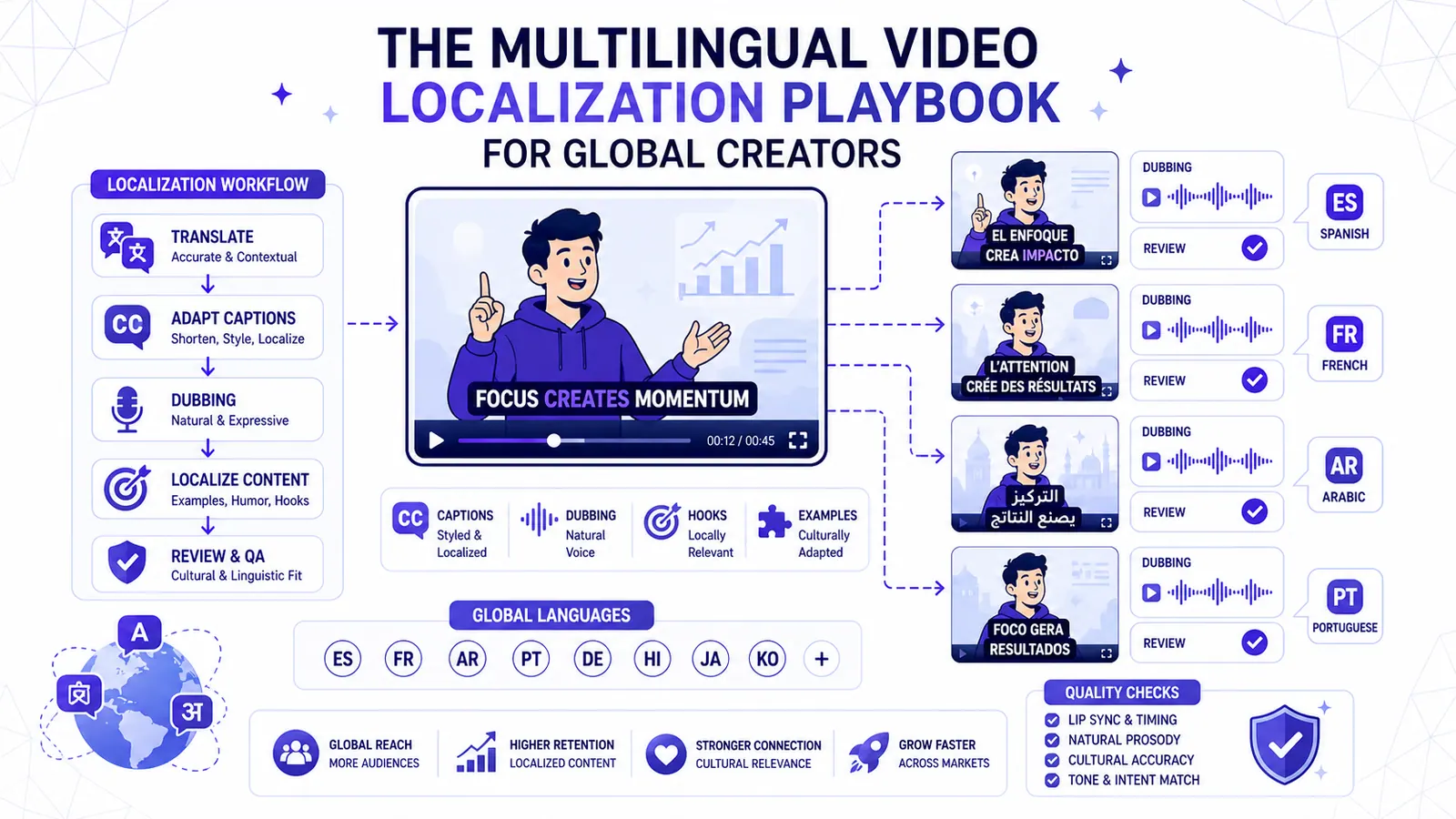
The Multilingual Video Localization Playbook for Global Creators
Translation alone is not localization. This playbook shows how to adapt captions, dubbing, hooks, examples, and review for international short-form content.
Read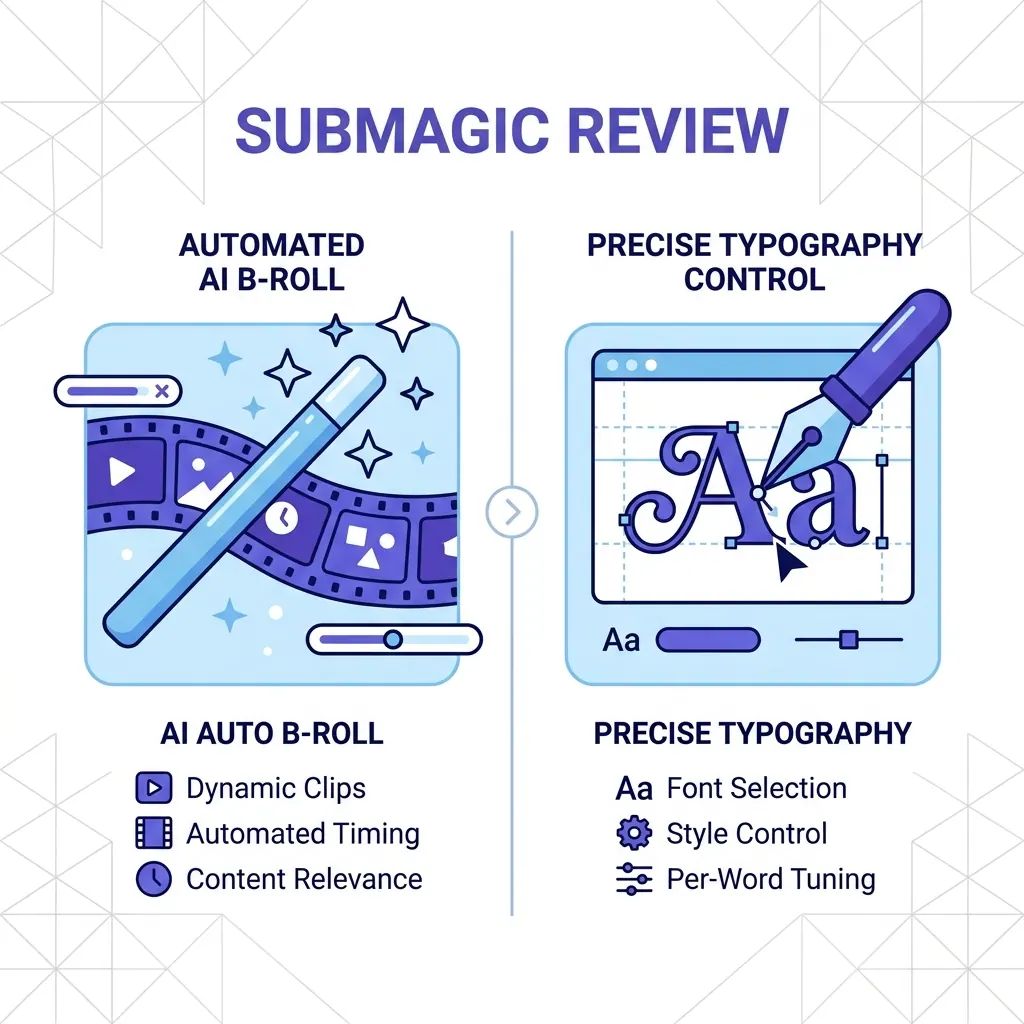
Submagic Review 2026: Is It Still Worth It? (Plus 4 Best Alternatives)
An honest review of Submagic's performance, pricing, and features in 2026. We compare it against CapzAi, Opus Clip, Captions.ai, and Klap to find the best short-form video editor for your needs.
Read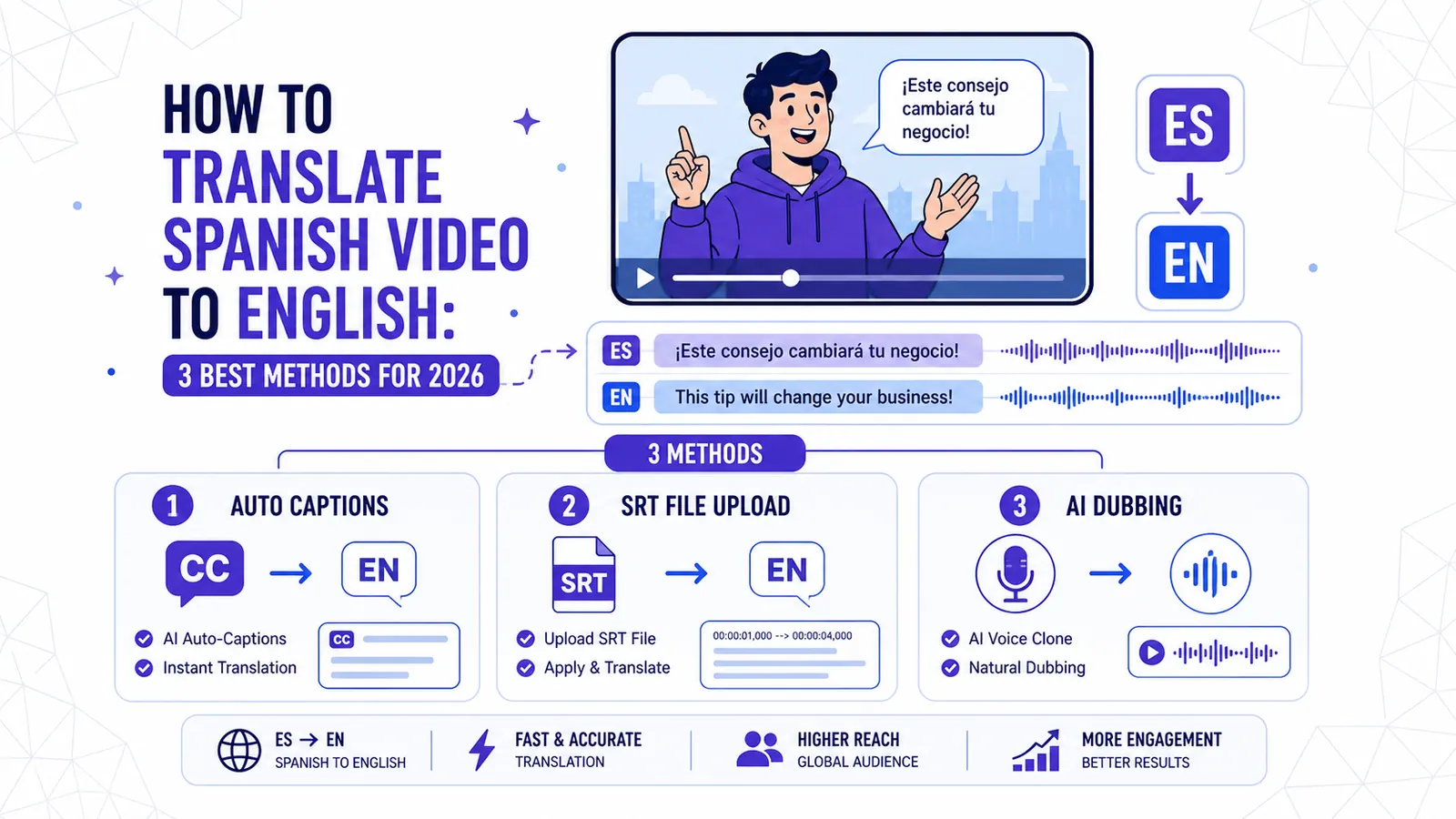
How to Translate Spanish Video to English: 3 Best Methods for 2026
Discover the most effective ways to translate Spanish video to English, from auto-captions and manual SRT files to full AI dubbing with CapzAi.
Read